
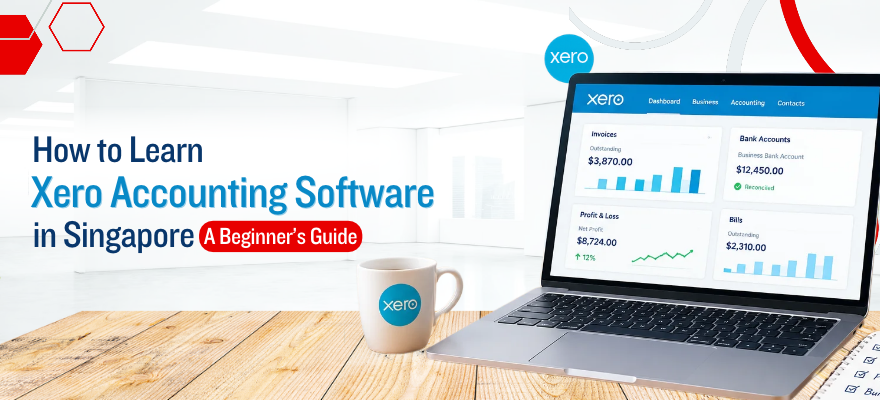


It is easier to learn Xero accounting software when the different accounting tasks are seen as parts of one process. Instead of studying each feature on its own, a beginner can follow a single business transaction from start to finish.
For example, a business sends an invoice to a customer, receives the payment in its bank account, matches that payment in Xero and then sees the income reflected in its financial reports. Seeing this connection makes it easier to use the software correctly.
This guide explains what Xero does, what beginners should study first, and how to build hands-on skills through common accounting tasks. It also covers ways to learn Xero in Singapore and how to choose an approach that fits the learner's experience.
What Is Xero Accounting Software?
Xero is cloud accounting software used to manage a business's financial records. It brings invoicing, expense tracking, bank reconciliation and financial reporting into one online system, so the figures no longer have to be pulled together from separate spreadsheets.
For a beginner, memorising every feature matters less than understanding what happens to a transaction after it is entered and where that information appears next. This is why Xero accounting for beginners is easier to follow when the software is studied alongside basic accounting concepts.
What Is Xero Used For?
Businesses use Xero for a range of routine accounting tasks.
- Invoicing: Create invoices and keep track of amounts customers owe.
- Expense tracking: Record business expenses, purchases and bills.
- Bank reconciliation: Match transactions in Xero with entries shown by the bank.
- Transaction recording: Keep a record of money received and money spent.
- Financial reporting: Review financial information through reports such as Profit and Loss and balance sheet.
- Payroll-related tasks: Manage employee and payroll information where the relevant payroll features are available.
Who Uses Xero?
The people using Xero have different responsibilities. A small business owner keeps track of sales, expenses and the overall financial position. An accountant reviews transactions and prepares financial reports, while a bookkeeper handles daily entries and bank reconciliation.
Students and career changers use Xero bookkeeping software to see how routine bookkeeping tasks are handled in accounting software. The features each person uses depend on the role and the subscription in place.
What Should Beginners Learn First in Xero?
Xero is easiest to learn in the order accounting work happens. A beginner who jumps between features may know how to create an invoice but not where its payment appears afterwards. The seven areas below follow that working order.
Start With Basic Accounting Concepts
Income is money earned from sales. Expenses are the costs of running the business. Assets are items the business owns, such as cash in the bank, and liabilities are amounts it owes, such as unpaid supplier bills. Debits and credits are the two sides of every entry, although Xero posts many of them automatically.
A small test shows why this matters. A business buys a laptop for SGD 1,800 and printer paper for SGD 20. Both are purchases, but the laptop is an asset that stays on the Balance Sheet, while the paper is an expense that reduces profit. Knowing this difference before opening Xero reduces the chance of wrong entries.
Understand the Xero Dashboard
The dashboard is the first screen after login. It shows bank balances, money owed by customers, bills waiting for payment and recent activity. The main menu groups the work into areas such as sales, purchases, reporting, accounting and contacts. Contacts store customers and suppliers, and the accounting area holds the chart of accounts. Menu names can change between versions, so a first session is best spent opening each area once. Readers who want to explore Xero’s screens and menus in more detail can refer to this guide on getting started with Xero.
Learn How Transactions Are Recorded
A transaction enters Xero in one of three ways: as a spend or receive money entry, through an invoice or bill, or through an imported bank feed. Each entry is assigned to an account in the chart of accounts, such as Sales, Rent or Office Supplies.
The account decides which report the amount lands in. A coffee machine repair coded to Office Supplies instead of Repairs and Maintenance still reduces profit, but the expense breakdown then tells the wrong story.
Learn Invoicing and Sales
The sales flow runs from customer to invoice to payment to record. A contact is selected, line items are added with the price and tax rate (GST where the business is registered), and the invoice is sent. When the payment arrives, it is applied to the invoice, which changes its status to paid. A freelance designer billing SGD 800 for a logo project follows exactly these steps.
Learn Expenses and Purchases
Purchases mirror the sales flow. A supplier bill is entered with the supplier, due date and account code, then paid on or before the due date. A monthly internet bill is a typical first example. Small costs such as a taxi fare or a printing receipt can be recorded directly as expenses. Consistent coding at this stage keeps the Profit and Loss report readable.
Learn Bank Reconciliation
Bank reconciliation checks that Xero agrees with the bank statement. Each statement line is matched to an existing invoice, bill or payment, or coded as a new transaction. When every line is matched, the Xero balance equals the bank balance.
Differences are where the learning happens. A client owes SGD 800, but the statement shows SGD 790 because the sender's bank deducted a SGD 10 charge. That SGD 10 needs its own entry before the line balances. A weekly or monthly routine keeps such gaps small.
Learn Financial Reports
Reports display the data already recorded. The Profit and Loss report shows income less expenses over a period, and the Balance Sheet shows assets, liabilities and equity on a given date. Aged Receivables lists unpaid customer invoices, Aged Payables lists unpaid supplier bills, and the Trial Balance lists every account balance. Reports also expose earlier mistakes, since an unusually high Office Supplies figure often points back to a coding error.
What Can Businesses Do With Xero?
Each area of Xero produces information a business can act on.
Manage Sales and Invoices
An overdue invoice list shows which customers to remind first and how long each payment has been outstanding.
Record Business Expenses
Spending grouped by supplier and category shows where costs are rising, often well before the year-end review.
Reconcile Bank Transactions
Matched entries give a bank balance in Xero that agrees with the statement, which supports confident cash decisions.
Track Financial Information
Contacts, accounts and transaction history sit in one searchable record, so a past payment can be found quickly.
Generate Financial Reports
Reports can be run for any date range and shared with an owner or accountant for review.
Manage Payroll-Related Information
Employee records, pay details and hours can be held together where payroll features are available. Employees can also submit their hours through the portal, and the steps are covered in this guide on adding a timesheet to the employee portal in Xero.
Learning Xero Payroll
Payroll is a separate area of Xero. It covers employee information, timesheets, pay runs, payroll records and payroll reports. Availability and rules differ by country and subscription plan, so a Singapore business should confirm which payroll features its plan includes before following any tutorial.
Some older payroll blogs show the Australian version of Xero Payroll, which explains the concepts but not the exact Singapore setup. Readers who would like to see the whole payroll area can start with this overview of Xero payroll for beginners.
How Xero Fits Into Everyday Bookkeeping
The parts of Xero make sense once they are seen as one chain:
- A transaction happens.
- The transaction is recorded as an invoice, bill or expense.
- Payment is made or received.
- The payment appears as a bank transaction.
- The bank transaction is reconciled.
- The result shows in the financial reports.
A café receives a supplier bill for SGD 450 of coffee beans and enters it with the supplier and a purchases account. When the café pays the bill, the payment appears in the bank feed. Matching that payment to the bill reconciles it, and the Profit and Loss report now shows the cost. The value of accounting with Xero lies in this chain, since one entry feeds several screens.
Xero vs Other Accounting Software
Xero vs QuickBooks
Both packages handle invoicing, expenses, bank reconciliation and reporting. They differ in screen layout, workflow steps, features and subscription plans. The choice often depends on which software an employer or client already uses. Those deciding which one to study first may find this Xero vs QuickBooks comparison for learners helpful.
Is Xero Easy to Learn for Beginners?
Xero is generally considered beginner-friendly for everyday tasks, although the time needed varies with prior accounting knowledge and how often the work is practised. Anyone asking how to use Xero accounting software can usually cover logging in, creating one invoice and viewing a report in a first session.
What Makes Xero Easier to Learn?
Visual interface: menus, lists and reports are laid out clearly.
Repeated workflows: invoices, bills and bank matching follow similar steps.
Clear transaction structure: every entry has a contact, an account and a date.
Cloud access: practice can happen from any device with an internet connection.
What Can Make Xero Difficult?
Unfamiliar accounting terms slow down every task.
Choosing the wrong account sends amounts to the wrong report.
Incorrect transaction treatment, such as recording an asset purchase as an expense, distorts the figures.
Irregular reconciliation lets errors pile up.
Studying features without the workflow behind them leaves knowledge in separate pieces.
Can Xero Be Learned Without Accounting Experience?
Xero can be learned without an accounting background, although studying Xero accounting basics alongside the software makes correct use easier.
Two separate skills are involved. Learning the software means knowing where to click to record a deposit. Understanding accounting means knowing whether a SGD 5,000 deposit is sales income or money the owner put into the business. Xero accepts either coding, but the Profit and Loss report is accurate only with the correct one. Learners who build both skills together tend to make fewer corrections later, and those who want a formal grounding in bookkeeping and core accounting concepts before opening Xero can look at accounting courses in Singapore so the software terms are already familiar from the first session.
A Simple Xero Learning Path for Beginners
Step 1: Understand Basic Accounting. Study income, expenses, assets and liabilities until each can be explained in one sentence. A quick test is sorting ten everyday purchases into the right category.
Step 2: Learn the Xero Interface. Open the demo company that Xero provides and visit every menu once, noting where customers, bills, bank accounts and reports are found.
Step 3: Understand Accounts and Transactions. Review the chart of accounts, then enter a few spend and receive money items. Note which accounts each entry changes.
Step 4: Practise Invoicing. Create invoices for two or three sample customers, send one, and record a payment against it.
Step 5: Record Expenses and Purchases. Enter supplier bills with due dates, pay one of them, and record a small cash expense, paying attention to the account chosen each time.
Step 6: Learn Bank Reconciliation. Enter a short sample bank statement and match every line. Investigate any difference between the statement and Xero until it reaches zero.
Step 7: Understand Financial Reports. Run the Profit and Loss and Balance Sheet reports, then trace one figure back to the transaction that created it.
Step 8: Learn Payroll-Related Workflows. Study employee records and pay runs where payroll is available for the subscription in use. A walkthrough of how to run a payroll in Xero accounting software shows the pay run sequence.
Step 9: Practise Complete Accounting Workflows. Run one month of sample transactions from invoice to final report without stopping, then review the result for errors.
How to Learn Xero in Singapore
Learners in Singapore usually choose one of three approaches, each with its own strengths.
Learn Through Individual Tutorials
Tutorials suit specific problems, single features and quick reference. The limitation is fragmentation, since separate lessons rarely show how one task connects to the next.
Learn Through Self-Study
Self-study works for people who already know accounting and can practise regularly. Without a set sequence, it can take longer to see how invoicing, reconciliation and reporting link together.
Learn Through Structured Xero Training
Structured training combines accounting concepts, software navigation, transactions, invoicing, reconciliation, expenses, reporting and exercises in one sequence. Learners who prefer a guided path may consider the Xero Accounting Software Training Course in Singapore, which covers these areas through guided practice.
What Should Learners Practise After Learning Xero?
Record a Business Transaction
Enter an SGD 300 payment received for consulting work and confirm it lands under the intended income account.
Create an Invoice
Bill a sample customer for two items and confirm the tax and total match a manual calculation.
Record an Expense
Enter an office rent bill, pay it, and confirm the bill moves from unpaid to paid.
Reconcile a Bank Transaction
Match a bank deposit to an open invoice and confirm the invoice shows as paid.
Check a Financial Report
Run the Profit and Loss report and confirm that the invoice and the expense both appear in the correct period.
Review a Complete Accounting Workflow
Follow one sale from invoice to report and list each screen it passed through.
Which Way of Learning Xero Suits Different Learners?
| Learner | Suitable approach |
| Completely new to accounting | Accounting basics followed by structured Xero learning |
| Already works in accounting | Xero-focused hands-on training |
| Business owner | The workflows needed for daily finance tasks |
| Existing Xero user | Tutorials for specific features |
| Career learner | Structured training with regular practice |
Conclusion
Xero is easiest to pick up when each task is treated as one step in a longer process. A bill entered today decides what a report shows next month, so asking “where does this go next?” is a habit worth building early.
Learners arrive with different backgrounds. Someone who has studied accounting before may find the menus familiar sooner, while a first-time learner usually benefits from spending extra time on the basics before handling any figures. Both groups improve faster when practice is regular and the results are checked against the reports.
Small errors are a normal part of learning, and they are simpler to fix when caught early. A short routine of entering sample transactions, matching a bank statement and reading the reports keeps the process fresh. Over time, this builds skills that suit any workplace running on Xero.
 +65 8421 2824


 Chat With Us
